How to Add Users and Manage Permissions in Google Search Console
Google Search Console is one of the best free tools for tracking your site’s organic performance. In one place, it shows you the queries, pages, impressions, and clicks that bring traffic to your site from search.
Inside Search Console there are two main roles: owner and user. Each one comes with a different level of access and set of capabilities, and only owners can grant permissions to other people.
Owners in Google Search Console
Owners have full control over a property in Search Console. They can add and remove users, change settings, view all of the data, and use every available tool. There are two types of owners, and both have the same permissions:
- Verified owner: Someone who confirmed ownership using a verification token, such as an HTML file uploaded to the site.
- Delegated owner: Someone who was granted owner status by a verified owner, without needing a verification token of their own.
Access and user types in Google Search Console
- Full users: can view all of the data and take a handful of specific actions.
- Restricted users: have view-only access to most of the data, with no ability to take specific actions.
- Associates: can perform certain actions on behalf of the site or access some data, but cannot view the account or the data directly inside Search Console.
Wondering if SEO would pay off in your case?
No promise of ranking first in 30 days. Tell us where you are and we will show you, with method, where organic can grow and bring your acquisition cost down.
How to add users to Search Console
Add a new user
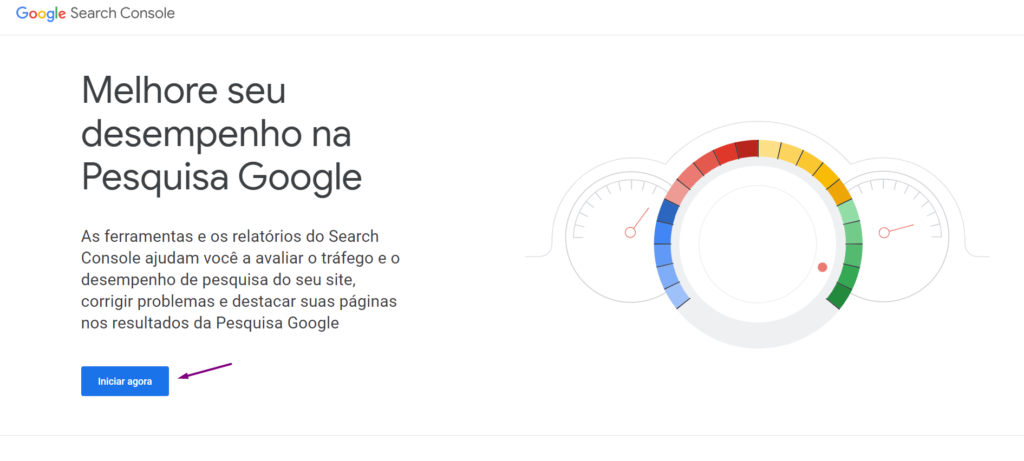
1. Open Google Search Console.
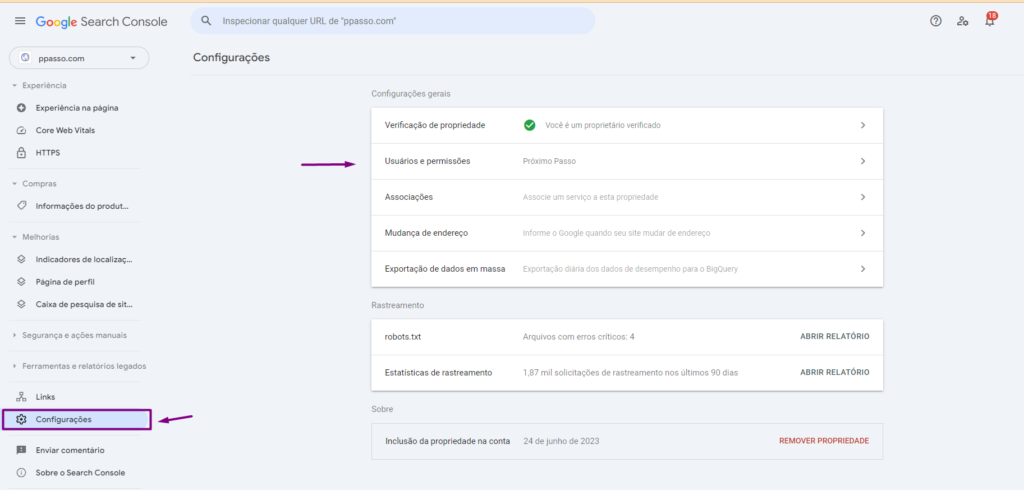
2. Go to Settings > Users and permissions.
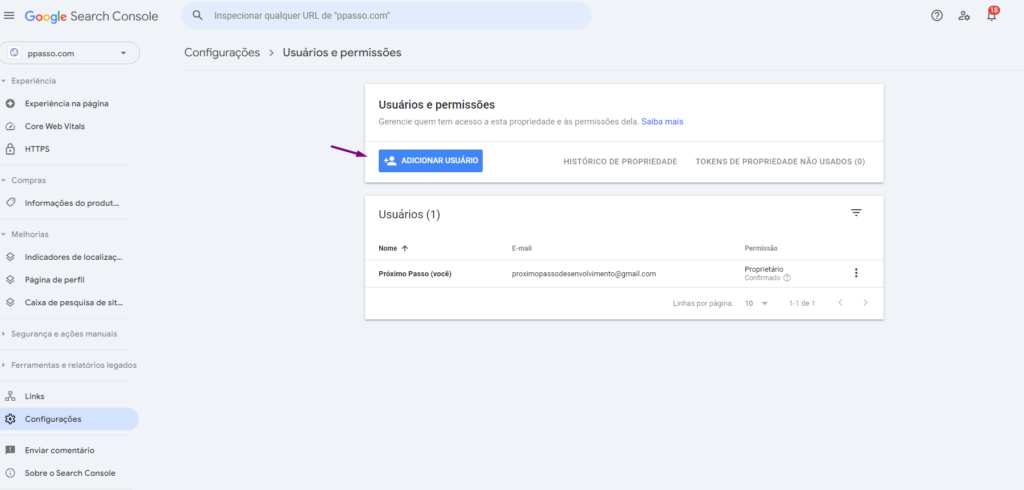
3. Click Add user.
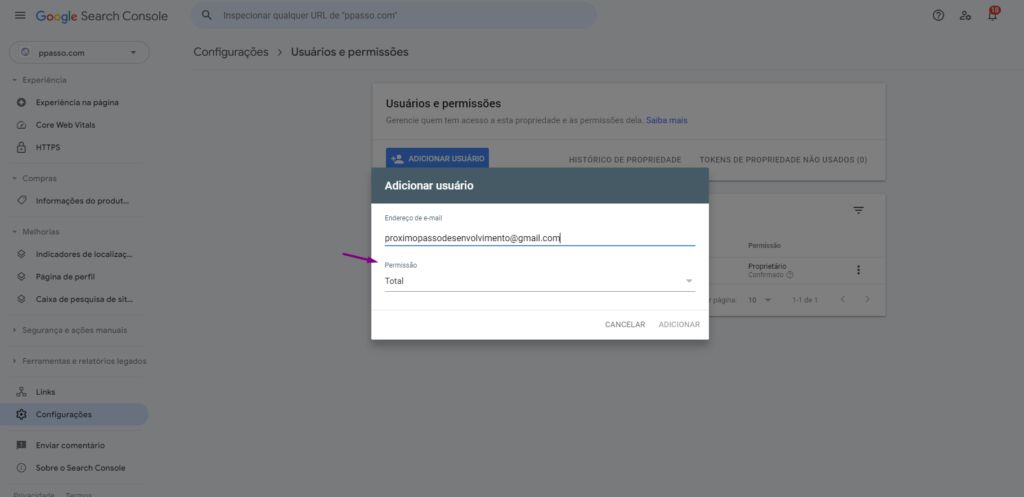
4. Enter the email address of the user or owner you want to add (for example, your SEO agency’s Google account), then choose the permission level.
5. Click Add, and that’s it. Access is granted, and you have successfully added a new user to Google Search Console.
Remove a user or delegated owner
- Open the property in Search Console.
- Go to Settings > Users and permissions.
- Click the more options icon next to the user you want to remove and select Remove access.
Changing permissions for existing users
- Open the property in Search Console.
- Go to Settings > Users and permissions.
- Click the more options icon next to the user and select Change permissions.
- Choose the new permission level and save the change.
Final thoughts
If the only verified owner of a site leaves the team, someone will need to confirm ownership again to keep access. To take over a site from a previous owner, verify ownership first, then remove the verification tokens that belong to the earlier owners.
User limits
- A maximum of 100 non-owners per property.
- Up to 500 delegated and verified owners.